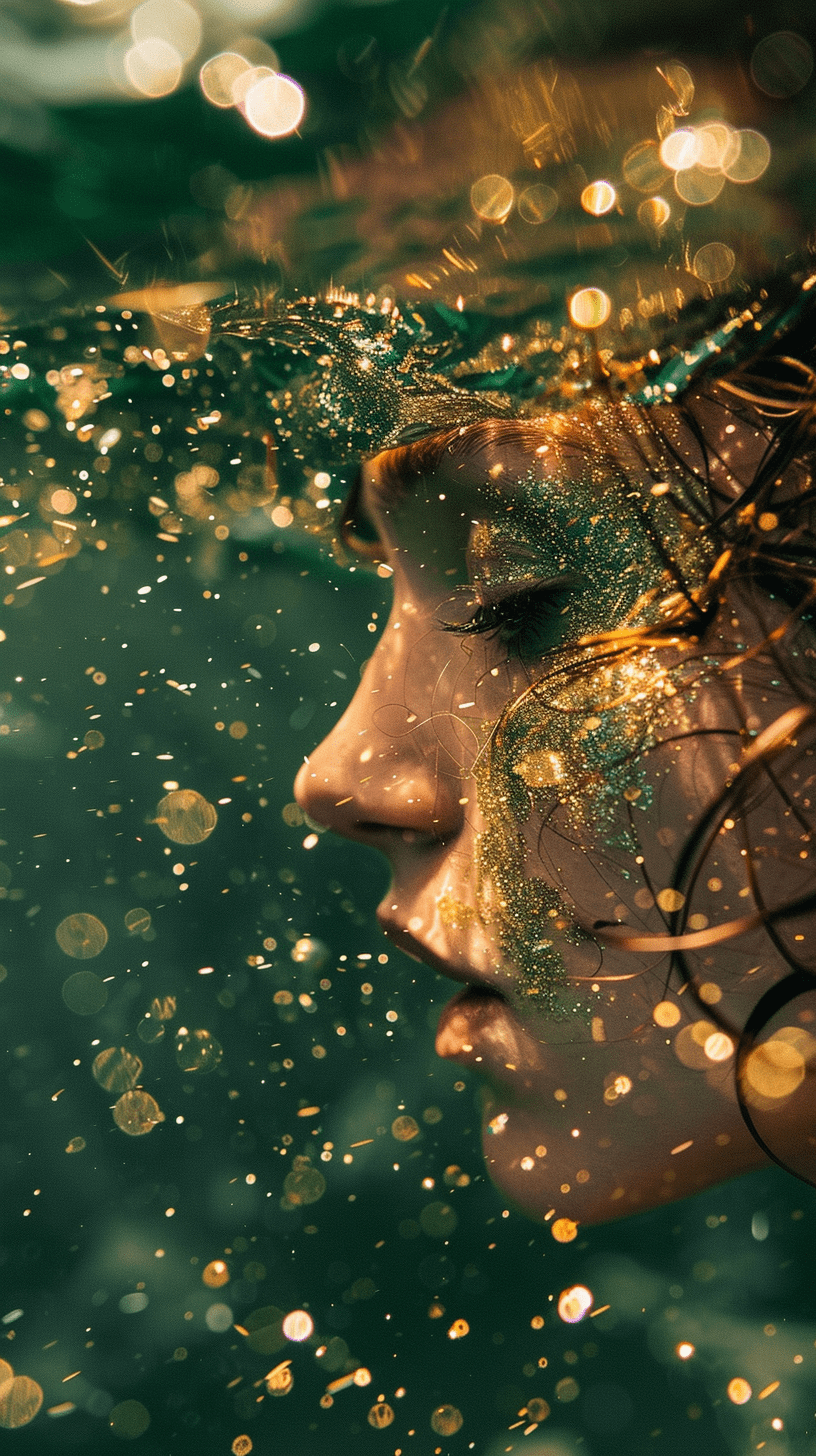
TV Frame or Wallpaper
Have you ever wanted to create a personalized TV frame or smartphone wallpaper that perfectly matches your vision? With AI art generators like Midjourney, DALL-E, and Stable Diffusion, you can transform your imagination into stunning digital artwork. Here’s a step-by-step guide to help you create your own unique image.
Step 1: Visualize Your Image
First, take a moment to visualize what you want to create. Think about the scene, the colors, the mood, and any specific details you want to include. For example, you might imagine a serene beach at sunset, a futuristic cityscape, or a whimsical forest.
Step 2: Choose Your AI Tool
Next, decide which AI tool you want to use. Each tool has its own strengths, so choose the one that best fits your vision:
- Midjourney: Great for detailed and imaginative art.
- DALL-E: Excellent for creative and surreal images.
- Stable Diffusion: Perfect for realistic and high-fidelity visuals.
Step 3: Write Your Prompt
Craft a descriptive prompt for your chosen AI tool. Here are some examples to inspire you:
- Midjourney Prompt: “Create a tranquil mountain lake at dawn, with mist rising from the water, pine trees surrounding the lake, and soft pink and orange hues in the sky.”
- DALL-E Prompt: “A whimsical forest filled with glowing mushrooms, fantastical creatures, and a gentle stream running through, under a starry night sky.”
- Stable Diffusion Prompt: “A hyper-realistic cityscape at sunset, with skyscrapers reflecting the golden light, busy streets filled with people, and a clear view of the horizon.”
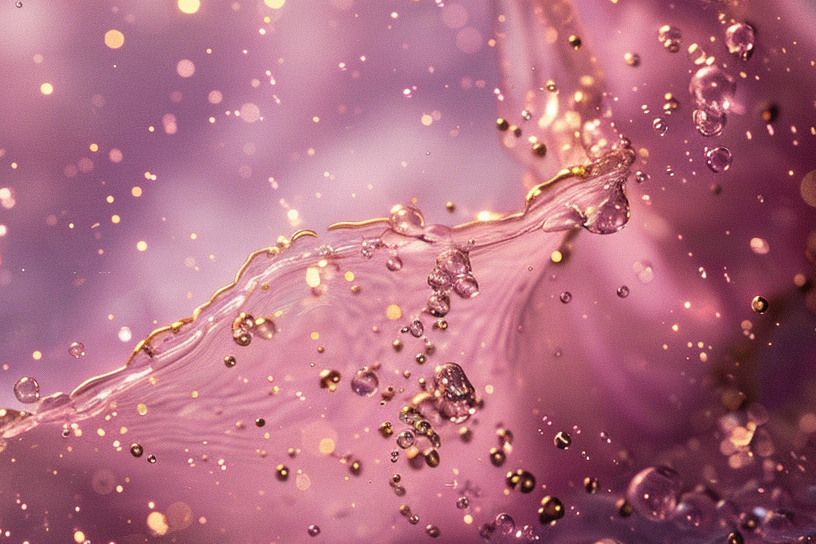
Step 4: Generate Your Image
Use your chosen AI tool to generate the image. Here’s a quick overview of how to use each tool:
- Midjourney: Access Midjourney via their Discord server. Type your prompt and wait for the AI to generate the image.
- DALL-E: Use the DALL-E interface on the OpenAI platform. Enter your prompt and let the AI create the image.
- Stable Diffusion: Utilize the Stable Diffusion tool, often available through various online platforms or APIs. Enter your prompt and generate the image.
Step 5: Adjust the Size
Ensure the generated image fits the dimensions of your TV or smartphone. Here are standard sizes for reference:
- TV Frame: 3840 x 2160 pixels (4K resolution) or 1920 x 1080 pixels (Full HD).
- Smartphone Wallpaper: 1080 x 1920 pixels (portrait mode) or 1920 x 1080 pixels (landscape mode).
You can use photo editing software like Adobe Photoshop, GIMP, or an online editor like Canva to resize the image.
Step 6: Set Your Image as Wallpaper
Finally, upload the resized image to your TV or smartphone and set it as your wallpaper. Enjoy your custom AI-generated artwork every time you look at your screen!

 Xuan's Digital Garden
Leave a comment